


If you want to know how to reset the PIN in Windows 11, read this post. Windows Hello in Windows 11 offers several options for entering the operating system, one of which is the PIN code, which has the main benefit of being unique for each device.
Knowing how to set up a new PIN for your Windows 11 account is critical for users who have lost their previous code and don’t like to use their account password to log in.
In this post, we will guide you through the necessary steps to know how to change your Windows 11 PIN if you forget it.
What to do when you forget your PIN?
It will depend on whether you want to reset the PIN when you are not logged in to Windows 11 or if you are already logged in to the computer.
If you are unable to log in, click I Forgot my PIN on the login screen and follow the system instructions.
How to Reset PIN in Windows 11
To change the PIN code when it is already connected to the device, follow the steps below:
- Open Settings.
- Select Accounts.
- Click Sign-in Options.

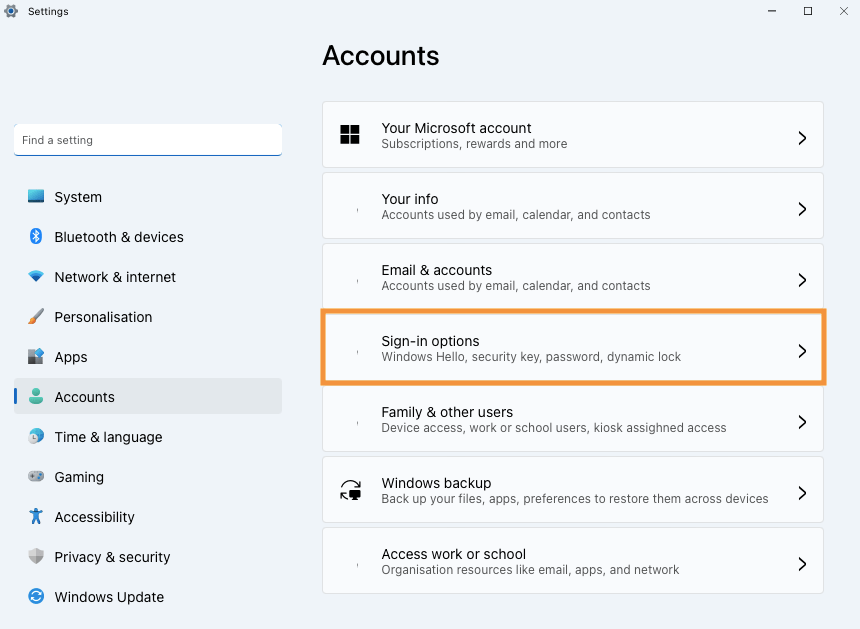
- Select PIN (Windows Hello).
- Click Forgot my PIN.


- Click Continue.
- Enter the password for the account.


- Create a new PIN.
- Confirm the new PIN.


10. Click OK.
After following the steps above, you can use the new PIN to connect to Windows 11 on your PC.
Summary
Learn how to change your Windows 11 PIN.
So, follow the steps above and say in the comments if you managed to change your Windows 11 access PIN.