

If you want to enable recent searches in Windows 11, read this post. When you enable search history, when you hover over the Windows 11 search icon, the history of searches performed by users recently will be displayed.
Knowing how to enable Windows 11 search history is critical for users who like the convenience of not having to type the same search term again if they are looking for the topic again.
In this post, we will guide you through the necessary steps to know how to turn on search history in Windows 11.
How to Enable Recent Search History in Windows 11
In order for Windows 11 to save what you searched for on your computer, follow the steps below:
- Open Settings.
- Select Personalization.
- Click Taskbar.

4. Click Taskbar Behavior.
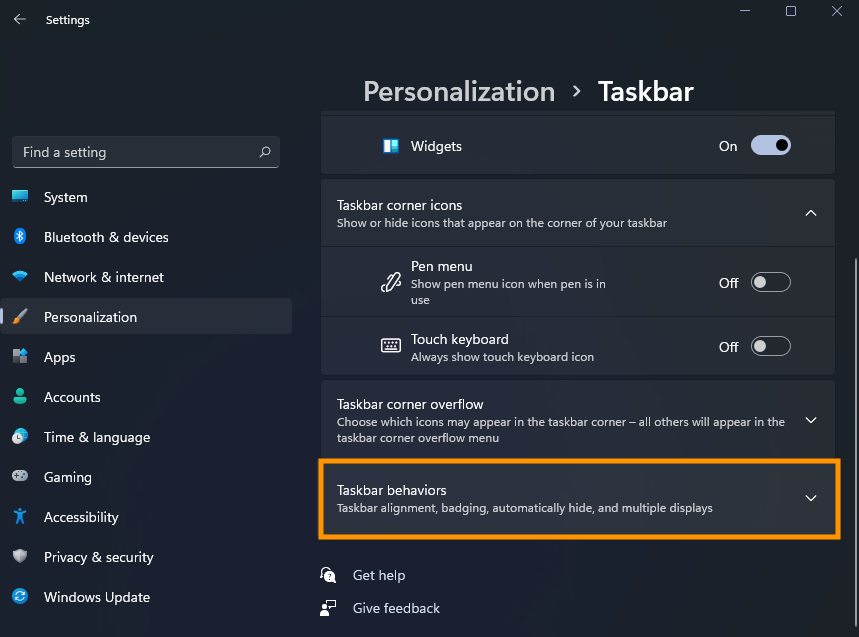
5. Check the Show recent searches when I hover over the search icon button.

After following the steps above, the system will save what you searched in Windows 11 recently.
Summary
How to enable recent search icon history in Windows 11 taskbar.
So, follow the steps above and say in the comments if Windows 11 is showing the history of searched words, when you hover over the icon.