

If you want to know how to make Windows 11 disable face recognition, read this post. Windows Hello in Windows 11 offers several options for entering the operating system, one of which is facial recognition, whose main benefit is the security and practicality of being linked to the user’s face.
Knowing how to stop speech recognition in Windows 11 is very important for users who want to turn off the automatic use of the webcam by Windows Hello, or want to use another authentication feature.
In this post, we will guide you through the necessary steps to know how to disable facial recognition in Windows 11.
How to turn off speech recognition in Windows 11
To prevent Windows 11 from automatically using the webcam to detect the user’s face, follow the steps below:
- Open Settings.
- Select Accounts.
- Click Sign-in Options.
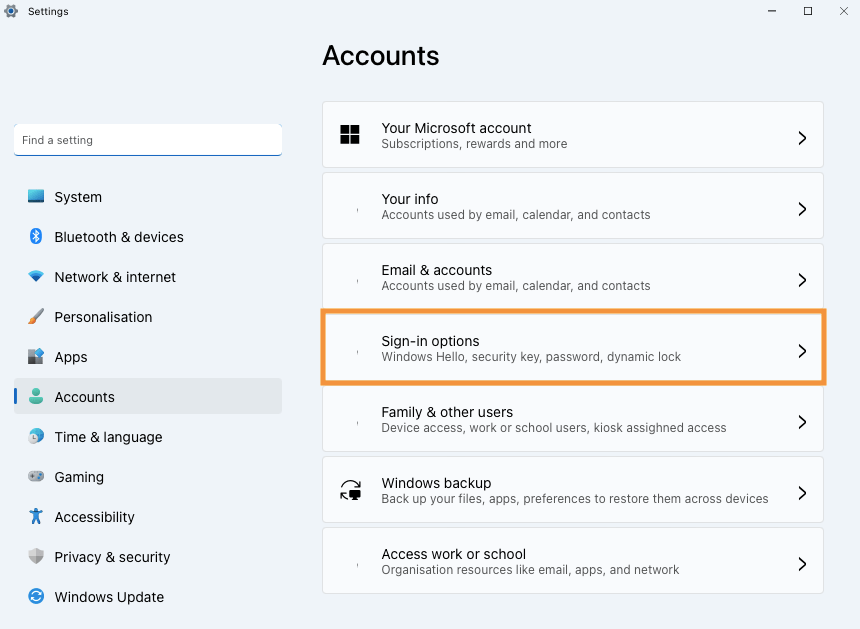
- Click Face recognition (Windows Hello).
- Click the Remove button.

After following the steps above, Windows 11 will no longer use the camera to recognize the user’s face.
Summary
Learn how to remove facial recognition in Windows 11.
So, follow the steps above and let us know in the comments if you managed to stop Windows 11 face recognition correctly.